How to File Emails Automatically in Outlook with Copilot (And a Faster Way)
Copilot can move emails and create filing rules in Outlook, but the workflow is slower than you'd expect. This guide walks through exactly how it works, where the friction is, and what to use when speed matters.
Microsoft Copilot in Outlook can move an email to a folder you name and can create inbox rules from plain-language descriptions. But it does not suggest which folder an email belongs in, and every action requires typing, waiting, and confirming. For one-click filing with automatic folder suggestions, Folder Suggest is free and works without any setup.
If you've heard that Copilot can automatically file emails in Outlook, the reality is more nuanced. Copilot has two email-filing capabilities, and neither works the way most people imagine when they hear "automatic." One moves a single email when you tell it exactly where to go. The other creates a standard Outlook rule that handles future email matching a pattern you describe. Both are useful in specific situations. Neither replaces the work of deciding where each email belongs.
This guide covers both methods step by step, explains where each one slows you down, and compares them to a dedicated filing tool that takes a different approach entirely.
Method 1: Moving a single email with Copilot
This is the most straightforward Copilot filing action. You tell Copilot to move the email you're reading to a specific folder.
- Open the email you want to file.
- Open the Copilot pane (click the Copilot icon in the toolbar, or press the Copilot button in the ribbon).
- Type a command like "Move this email to the Invoices folder" or "Move this to Client X."
- Wait for Copilot to process the request. This takes several seconds because every action runs through Microsoft's cloud.
- Copilot shows a confirmation. Click to approve the move.
If the folder name you typed doesn't exist, Copilot may offer to create it. If the name is ambiguous or misspelled, it may ask you to clarify.
Where this breaks down
The core problem: you need to already know which folder the email belongs in. Copilot does not read the email and suggest a destination. If you have 30 or 40 folders, you're recalling the right name from memory, typing it out, and waiting for the round-trip. For a single email, that's manageable. For a morning triage session of 30+ messages, it's slower than dragging emails to folders manually.
We tested this workflow in detail in Can Copilot Move Emails to Folders in Outlook? and found the same result: the move works, but the overhead of typing and waiting makes it impractical at volume.
Method 2: Creating an inbox rule with Copilot
Copilot's second filing feature is more useful for ongoing automation. You describe a rule in plain language, and Copilot creates a standard Outlook inbox rule for you.
- Open the Copilot pane in Outlook.
- Type a description like "Move emails from newsletters@company.com to the Newsletters folder" or "Move emails with 'Invoice' in the subject to the Finance folder."
- Copilot translates your description into a rule with conditions and actions.
- Review the rule summary and click to confirm.
Once saved, the rule runs like any other Outlook rule. Future emails matching the conditions are filed on arrival, without any manual action.
What this doesn't cover
A Copilot-created rule is a standard Outlook rule. It matches emails based on fixed conditions: sender address, subject keywords, whether you're in the To or CC field. It does not read the body of an email and make a judgement call about where it belongs.
That means rules work well for predictable, repeating email. They don't help with:
- First emails from new senders. No rule exists yet, so the email sits in your inbox until you file it yourself.
- Emails that don't fit a simple condition. A message from your accountant about a specific project doesn't match a sender-based rule cleanly.
- Changes in your workflow. When you rename a folder or restructure your hierarchy, existing rules break silently. Copilot creates rules but doesn't maintain them.
For a deeper look at where rules fall short, see Outlook Rules vs Folder Suggest.
Why Copilot is slow for email filing
Both methods above work. The question is whether they're fast enough to use as your primary filing workflow. For most people handling more than a handful of emails a day, the answer is no.
Cloud latency. Every Copilot action runs in Microsoft's cloud. Each request takes several seconds to come back, even on a fast connection. When you're filing 20 or 30 emails in a session, those seconds compound quickly.
Typing overhead. You need to open the Copilot pane, type a sentence that includes the exact folder name, and wait for confirmation. Compare that to clicking a folder in a sidebar or clicking a pre-selected suggestion.
No folder suggestions. Copilot does not look at an email and tell you where it should go. You make that decision yourself before typing the command. For emails where the destination is obvious, that's fine. For the ambiguous ones that actually take time to file, Copilot doesn't reduce the mental load at all.
Paid licence required. Copilot in Outlook requires a Microsoft 365 Copilot licence, which is an add-on on top of a standard Microsoft 365 subscription. If the main thing you want is faster email filing, that's a significant cost for limited filing functionality.
Copilot vs Folder Suggest for email filing
Copilot and Folder Suggest take fundamentally different approaches. Copilot executes commands you type. Folder Suggest reads the email and suggests where it should go.
| Capability | Copilot | Folder Suggest |
|---|---|---|
| Suggests which folder to use | ✗ No | ✓ Yes, ranked by match |
| Speed per email | ✗ 10–15 seconds (type + wait + confirm) | ✓ ~2 seconds (suggestion appears, one click) |
| Requires typing a folder name | ✗ Yes, every time | ✓ No |
| Handles new senders without setup | Only if you know the folder | ✓ Yes, reads content |
| Creates rules from natural language | ✓ Yes | ✗ No (files on demand) |
| Runs on-device (content stays private) | ✗ No (cloud) | ✓ Yes |
| Cost | ✗ Copilot licence required | ✓ Free |
A faster way to file emails in Outlook
Folder Suggest is a Outlook add-in that takes the opposite approach to Copilot. Instead of waiting for you to tell it where an email goes, it reads the email's sender, subject, and body, then ranks your existing folders by how well they match. The top suggestion is pre-selected. One click files the email.
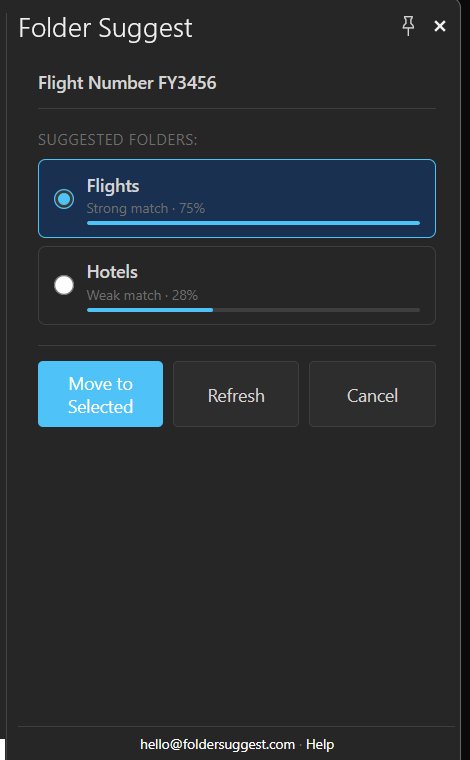
The AI model runs entirely on your device, so your email content never leaves your machine. Suggestions come back in about a second. There are no rules to write, no training period, and no configuration. It works from the first email you open, against whatever folder structure you already have.
For people filing more than a few emails a day across many folders, this removes the two biggest bottlenecks: deciding which folder fits and navigating to it. Both steps are handled by the suggestion.
Skip the typing. Get the right folder suggested for you in one second, and file with one click.
Add to OutlookWhen to use Copilot vs Folder Suggest
Copilot and Folder Suggest aren't competing for the same job. They handle different parts of the filing problem, and they work well together.
Use Copilot to create inbox rules from natural language. If you get 20 newsletters a day and want them all routed to a Newsletters folder, telling Copilot "move emails from newsletter@example.com to Newsletters" is genuinely faster than opening the Rules wizard and configuring it manually. Once the rule exists, those emails file themselves on arrival without any further action.
Use Folder Suggest for the emails that rules can't handle: messages from new senders, one-off topics, ambiguous emails that don't fit a clean condition. This is usually where the real filing time goes. Folder Suggest reads each email and suggests the right folder, so you're not recalling folder names or scrolling through your hierarchy.
The combination covers both sides: Copilot-created rules handle the predictable traffic on arrival, and Folder Suggest handles everything else when you open it. For more on how all four filing methods compare, see our full guide.
Frequently Asked Questions
Can Copilot automatically file all my emails in Outlook?
No. Copilot can move a single email to a folder you name, and it can create inbox rules that file future matching emails on arrival. But it does not watch your inbox and sort every new message into the right folder on its own. Each filing action requires you to open the Copilot pane, type the folder name, and confirm. For email that doesn't match a rule, you're still deciding and filing each message yourself.
Is Copilot faster than dragging emails to folders manually?
Usually not. Dragging an email to a visible folder takes one or two seconds. Copilot requires opening the chat pane, typing a sentence with the folder name, waiting several seconds for a cloud response, and confirming the action. For people who can see their target folder in the sidebar, drag-and-drop is faster. A dedicated filing add-in like Folder Suggest is faster still, because it pre-selects the right folder for you.
Do I need a Copilot licence to file emails in Outlook?
Yes. Microsoft Copilot in Outlook requires a paid Microsoft 365 Copilot licence, which is an add-on to a standard Microsoft 365 subscription. If you only want faster email filing, free alternatives exist. Folder Suggest handles folder suggestions and one-click filing at no cost, and Outlook's built-in Rules engine is free for condition-based automation.
What is the fastest way to file emails into folders in Outlook?
For repeating patterns (specific senders, subject keywords), Outlook Rules file matching emails on arrival with no manual effort. Copilot is a convenient way to create those rules using plain language. For everything that doesn't follow a fixed pattern, a content-aware add-in like Folder Suggest reads each email and suggests the right folder in about one second. You confirm with a single click. Most people get the best results combining both: rules for predictable email, Folder Suggest for the rest.