How to Organize Outlook Folders: A Practical Guide
A well-designed folder structure saves you time every single day. A poorly designed one creates a different kind of mess. Here's how to build one that works, and how to keep it working as your inbox grows.
A workable Outlook folder structure is 5–15 top-level folders organised by project, client or responsibility, no more than two levels deep, with archives kept separate from active work. The common mistakes are nesting too deeply, creating folders you will never file into, and duplicating what search already does well. The harder problem is not building the structure but keeping to it — most structures fail because filing each email takes a decision. Folder Suggest removes that decision by ranking your existing folders for each email you open, so the structure survives contact with a busy week.
Outlook folders are one of those things that seem simple until they're not. Most professionals start with a handful of folders, add more as they need them, and end up, a few years later, with a sprawling hierarchy that no longer makes sense. Emails get filed in the wrong place, duplicated across folders, or — more often — left sitting in the inbox because choosing a folder takes too long.
The good news is that folder organisation isn't complicated if you start with the right principles. This guide walks through how to organize your Outlook folders from the ground up: what makes a good structure, what commonly goes wrong, and practical templates you can adapt for your own inbox.
How to Create a Folder in Outlook
Before thinking about structure, here's how to create a new folder in each version of Outlook:
| Outlook version | How to create a folder |
|---|---|
| New Outlook for Windows | Right-click account name → Create new folder → type name → Enter |
| Classic Outlook for Windows | Right-click in folder pane → New Folder → type name → Enter (or press Ctrl+Shift+E) |
| Outlook on the web | Scroll to bottom of folder list → Create new folder → type name → Enter |
| Outlook for Mac | Right-click account or folder → New Folder → type name → Enter |
| Outlook mobile (iOS/Android) | Open folder pane → tap Add folder or + → type name → confirm |
Outlook on the web (outlook.com / outlook.office.com)
- In the left sidebar, right-click Folders (or any existing folder you want to nest inside).
- Select Create new subfolder.
- Type a name and press Enter.
New Outlook for Windows
- In the folder pane on the left, right-click the parent folder (or your account name for a top-level folder).
- Select Create new subfolder.
- Type the folder name and press Enter.
Classic Outlook for Windows
- In the folder pane, right-click the location where you want the new folder.
- Select New Folder…
- Type a name, choose where to place it (if prompted), and click OK.
You can also use the keyboard shortcut Ctrl + Shift + E to create a new folder in classic Outlook.
Outlook for Mac
- Right-click any folder in the sidebar.
- Select New Folder (for a sibling) or New Subfolder (to nest inside).
- Type the name and press Return.
Outlook Mobile (iPhone and Android)
Folder creation on mobile varies by app version and account type.
- Open the Outlook app and tap your profile or mailbox icon to open the folder pane.
- Look for an Add folder, plus (+), or three-dot menu option.
- Enter a name and tap to confirm.
If you don’t see the option, create the folder in Outlook on the web or the desktop app. It will sync to mobile automatically.
Creating a Subfolder
A subfolder nests inside an existing folder. The process is the same in every version, except you right-click the parent folder instead of your account name. The subfolder appears indented beneath the parent. Keep nesting to one or two levels — past that, you spend more time navigating than finding, which is the first of the common mistakes below.
What Makes a Good Folder Structure?
A good Outlook folder structure has three qualities:
- One obvious home for every email. When an email arrives, there should be one folder it clearly belongs in — not two or three plausible options. If you're regularly unsure where to file something, your structure has an ambiguity problem.
- Easy to navigate. You should be able to find a filed email without searching for it. Deep nesting (more than 3 levels) or too many similarly-named folders makes this harder than it needs to be.
- Low maintenance. The structure should still make sense six months from now without you having to redesign it. Folders tied to specific dates or short-lived projects tend to go stale.
Common Mistakes to Avoid
Most inbox organisation problems come from the same handful of mistakes:
- Too many folders. Having 80 folders doesn't mean you're more organised. It means every email requires a decision. Fewer, broader folders are often more useful than many narrow ones.
- Folders by date. A folder called "Q1 2025 Emails" sounds organised but is nearly useless. You don't usually know when an email arrived when you're looking for it — you know what it was about.
- Duplicating Microsoft's categories. If you already tag emails with categories in Outlook, you don't also need folders for those same tags. Pick one system.
- Filing everything. Not every email deserves a permanent home. Newsletters, automated notifications, and one-off messages that require no follow-up can simply be deleted after reading.
- The "miscellaneous" folder. A folder labelled "Misc" or "Other" is where filing intentions go to die. If something doesn't fit anywhere, either your structure is too narrow or the email doesn't need to be saved.
A Simple Starting Structure
If you're starting fresh or rebuilding, here's a flat-first structure that works well for most professionals:
The key insight here is separating status (Action Required, Waiting For) from topic (Reference subfolders). This mirrors how you actually use email — sometimes you want to see everything that needs your attention, and sometimes you want to find everything about a particular client.
As your needs grow, you add specificity inside Reference — a subfolder per client, per project, per year — without complicating the top-level structure.
Folder Templates by Professional Role
Consultant or Freelancer
Client separation is usually the top priority. A per-client structure keeps everything together and makes it easy to pull up everything related to a specific engagement.
Lawyer or Legal Professional
Matters are the natural unit of organisation. Client emails span multiple matters, so a matter-level structure (nested under clients) is usually the right approach.
Project Manager
Projects are the natural dividing line, but project managers also handle a lot of cross-project coordination. A project-first structure with a separate folder for stakeholder and team communications usually works well.
General Professional (Non-Client Facing)
If you don't manage clients or projects directly, a topic-based structure is usually more durable than a project-based one.
How to Migrate Without Starting Over
If your inbox is already a mess, you don't have to rebuild everything at once. A pragmatic migration approach:
- Create your new top-level structure. Just the main folders, nothing nested yet.
- Archive everything older than 12 months into a single "Pre-2025 Archive" folder. You're unlikely to need it, and this immediately clears the clutter.
- Work forward from today. File new emails into the new structure as they arrive. Don't backfill everything — it's not worth the time.
- Add subfolders as needed. When a folder gets too broad, split it. Don't pre-create subfolders you don't have content for yet.
Maintaining Your Structure Over Time
The biggest challenge isn't building a good folder structure. It's maintaining one. A few habits that help:
- File as you go, not in batches. Leaving emails in the inbox "to file later" is how the inbox becomes a second filing system. File each email once, when you deal with it.
- Review your folder list annually. Delete folders you haven't used in a year. Merge folders that have drifted to overlap.
- Don't create a folder until you need it. Adding a folder preemptively for a project that hasn't started yet is a common source of clutter.
- Use Outlook's search when in doubt. Search is fast. If a folder gets too granular, relying on search is often faster than navigating a deep hierarchy.
How AI-Powered Filing Helps You Stick to Your Structure
The main reason good folder structures fall apart is that filing takes mental effort. You have to open an email, decide where it goes, navigate the folder tree, and drag it. Multiply that by 50 emails a day and it's easy to see why people give up and let things pile up in the inbox.
This is where an AI filing assistant makes a real difference. Folder Suggest reads the email you're viewing — subject, sender, and body — and compares it against the emails already stored in each of your folders. It then suggests the best matching folder, ranked by confidence. One click moves the email where it belongs.
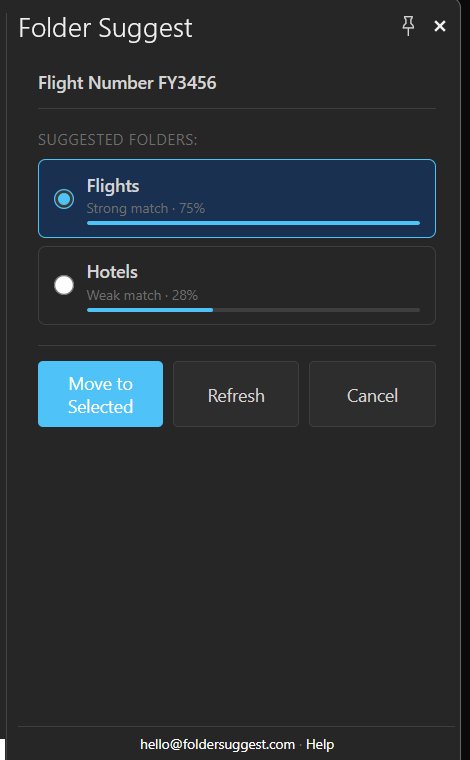
There's no configuration and no rules to write. Because Folder Suggest learns from the emails already in your folders, it adapts automatically as your folder structure changes. Add a new client folder, and it immediately starts suggesting it for relevant emails.
More importantly, it removes the decision fatigue from filing. When the right folder is surfaced for you, filing goes from a chore that gets postponed to a one-click action you do as you read each email.
Ready to keep your folder structure actually organised? Folder Suggest suggests the right folder for each email — no rules, no drag-and-drop.
Add to OutlookFrequently Asked Questions
Why can’t I find the option to create a folder in Outlook?
The option is in a different place depending on your Outlook version. In new Outlook for Windows, right-click your account name in the folder pane and select Create new folder. In classic Outlook, right-click and select New Folder. If the new Outlook steps don’t work, try switching the toggle off to use classic Outlook, or right-click your account name rather than the Inbox.
What is the difference between a folder and a category?
A folder physically stores the email in one place. A category is a coloured tag that leaves the email where it is. Use folders for filing and categories for cross-cutting labels like “Follow up” or “Urgent.”
Where do deleted folders go in Outlook?
Deleted folders move to the Deleted Items folder and can be recovered from there until that folder is emptied.
Do Outlook folders sync across devices?
Yes, as long as you use the same account. A folder created on desktop appears in Outlook on the web and mobile, usually within a minute.
Can I reorder folders in Outlook?
In new Outlook for Windows you can drag folders up and down the sidebar. To sort alphabetically, go to View > Layout > Folder pane and choose Order folders A to Z.
What is the keyboard shortcut to create a folder in Outlook?
In classic Outlook for Windows, press Ctrl+Shift+E to open the New Folder dialog. This shortcut is not available in new Outlook or Outlook on the web.