12 Outlook Tips and Tricks for Microsoft 365
Most of Outlook's time-savers are already in Microsoft 365. They are just switched off or hard to find. These twelve are the ones worth setting up, with the steps for classic Outlook and for the new Outlook and Outlook on the web where they differ.
The twelve Outlook tips that save the most time: decide whether Focused Inbox helps you, learn a handful of keyboard shortcuts, search with operators such as from: and hasattachment:yes, turn repeated actions into Quick Steps, let rules handle predictable mail, file the rest with one click, save replies you repeat as templates, schedule send, turn on Undo send, set up automatic replies before you leave, clear old mail with Archive, Sweep and Clean Up, and pin the add-ins you use. All but one are built into Microsoft 365. The exception is filing mail that follows no fixed pattern, which is what Folder Suggest does: it reads the open email on your device and ranks your existing folders by fit.
- 1. Decide on Focused Inbox
- 2. Learn the shortcuts you use every day
- 3. Search with operators
- 4. Turn repeated actions into Quick Steps
- 5. Let rules handle predictable mail
- 6. File the rest with one click
- 7. Save replies you repeat as templates
- 8. Schedule send
- 9. Turn on Undo send
- 10. Set up automatic replies before you leave
- 11. Clear old mail with Archive, Sweep and Clean Up
- 12. Pin the add-ins you use
1Decide on Focused Inbox
Focused Inbox splits your inbox into two tabs — Focused (mail Microsoft's model thinks is important) and Other (everything else). It is a useful filter for some people and a source of missed emails for others.
The mistake is leaving it as it came without choosing. If Focused Inbox is on and you don't know it, mail can sit in Other unread for days.
To turn it on or off in classic Outlook, go to the View tab and select "Show Focused Inbox". In the new Outlook, go to View → View settings → Mail → Message list and change "Sort messages into Focused and Other". In Outlook on the web, it is under Settings → Mail → Message list. For the Mac and your phone, and how to train it, see Focused Inbox in Outlook: how it sorts, how to train it and how to turn it off.
2Learn the Shortcuts You Use Every Day
Outlook has hundreds of keyboard shortcuts. These cover the actions you take dozens of times a day:
- Ctrl + R — Reply
- Ctrl + Shift + R — Reply all
- Ctrl + F — Forward (in Outlook on the web it is Ctrl + Shift + F)
- Ctrl + Enter — Send the message you are writing
- Ctrl + Q — Mark as read
- Ctrl + Shift + V — Move to a folder (classic Outlook)
- Ctrl + E or F3 — Search in classic Outlook; Alt + Q on the web
In the new Outlook and Outlook on the web, press ? to see every shortcut. On the web you can also switch to Gmail's or Yahoo Mail's shortcuts under Settings → General → Accessibility → Keyboard shortcuts, which helps if your hands already know them.
3Search with Operators
Typing a name into the search box finds every email that mentions it. Operators narrow that to the email you want. They work in classic Outlook, the new Outlook and Outlook.com:
from:anna— mail from a sendersubject:invoice— a word in the subjecthasattachment:yes— only mail with attachmentsreceived:"this week"— mail by dateto:anna— mail you sent to someone, from Sent Itemsread:no— unread mail only
Combine them in one search: from:anna hasattachment:yes received:"this week". AND, OR and NOT work too, in capitals. Note that the operator is hasattachment, singular.
4Turn Repeated Actions into Quick Steps
A Quick Step is one button that does several things to the selected email: move it to a folder, mark it as read, flag it, forward it, or any mix of these.
In classic Outlook, find Quick Steps on the Home tab and choose Create New. Give it a name, pick the actions, and assign a shortcut (Ctrl + Shift + 1 to 9). In the new Outlook and Outlook on the web, go to the Home tab → Quick steps → Manage quick steps, then add a new one. The new Outlook has fewer actions than classic so far.
Quick Steps worth having:
- "Done" — marks the email as read and moves it to an archive folder
- "Delegate" — forwards it to a colleague and moves it to a "Waiting for" folder
- "Action needed" — flags it and moves it to an action folder
With a shortcut on each, you can work through most of an inbox without the mouse.
5Let Rules Handle Predictable Mail
Rules are the right tool for mail that always looks the same: newsletters, system notifications, receipts, or everything from one sender. Set them once and that mail never reaches your inbox.
In classic Outlook, go to Home → Rules → Manage Rules & Alerts. In the new Outlook and Outlook on the web, go to Settings → Mail → Rules. Rules made on the web run on the server, so they work even when Outlook is closed.
Rules need a condition that stays true, and most mail doesn't have one: client emails, project threads and requests from people you rarely hear from. That is where rules stop helping. If classic Outlook shows "Error reading the rules from the server" when you open your rules, see how to fix that error.
6File the Rest with One Click
For the mail rules can't sort, the slow part is deciding where each email goes. Folder Suggest is an Outlook add-in that reads the email you are looking at, compares it with what is already in your folders, and suggests the best match. It looks at the sender, subject and body, not one fixed condition, so it keeps working when a client writes from a new address.
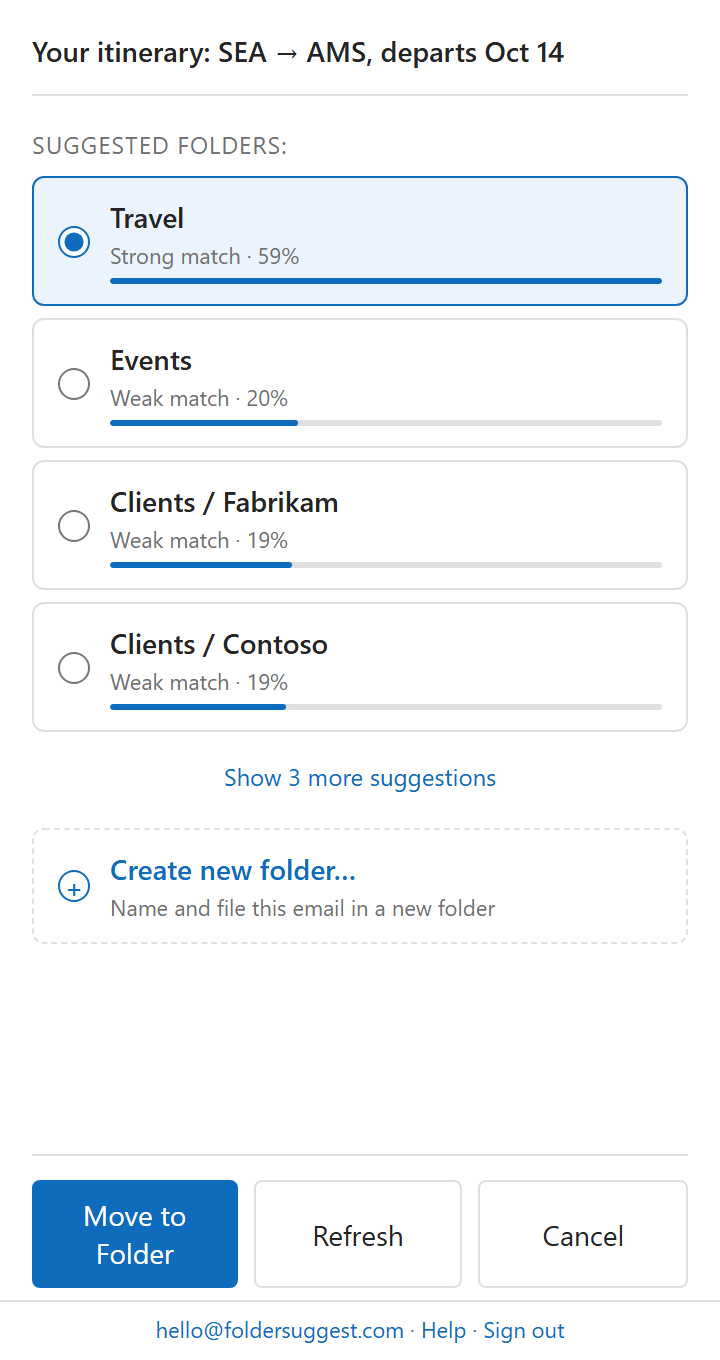
There are no rules to write. The AI model runs on your device, so your email is not sent to an AI service, and it works in classic Outlook, the new Outlook, Outlook on the web and on the Mac. It is free to start: 5 filed emails a day, with unlimited filing on Pro.
If your folders need work first, start with how to create and organise Outlook folders. For every way to automate filing, see how to automatically file emails in Outlook.
7Save Replies You Repeat as Templates
If you type the same answer more than twice a week, save it. In the new Outlook and Outlook on the web, write the email, then select Mail template → Save email as template on the Message ribbon, and reuse it with New → Mail from template. In classic Outlook, save the message as an Outlook Template (.oft) with File → Save As, and keep short blocks of text in Quick Parts.
Steps for each version, and when to use which, are in Outlook email templates and Quick Parts.
8Schedule Send
If you work early, late or across time zones, write now and deliver later. A reply sent at 11 PM tells people something about your hours that you may not want to say.
In classic Outlook, while writing, go to Options → Delay Delivery and set a date and time. In the new Outlook and Outlook on the web, select the arrow next to Send and choose Schedule send.
9Turn On Undo Send
Undo send holds every email for a few seconds after you press Send, with an Undo button on screen. It catches the missing attachment and the wrong recipient.
In the new Outlook and Outlook on the web, go to Settings → Mail → Compose and reply, find Undo send, and choose how long to wait. Classic Outlook has no Undo send. The closest is a rule that delays everything you send: Home → Rules → Manage Rules & Alerts → New Rule → "Apply rule on messages I send", then "defer delivery by a number of minutes".
10Set Up Automatic Replies Before You Leave
Automatic replies tell people you are away and who to contact instead. You can set a start and end date, so you can set them up days ahead and they switch off on their own.
In classic Outlook, go to File → Automatic Replies. In the new Outlook and Outlook on the web, go to Settings → Account → Automatic replies. For what to write, the inside and outside messages, and how to deal with the backlog when you return, see how to set up out of office in Outlook.
11Clear Old Mail with Archive, Sweep and Clean Up
Conversation view groups the emails of one thread together. Keep it on if you get a lot of mail: one line per thread instead of one per reply.
It also makes Clean Up useful. Clean Up removes earlier messages in a thread whose text is already quoted in a later one. In classic Outlook, select a conversation, then Home → Clean Up → Clean Up Conversation. Sweep, in the new Outlook and on the web, deletes or moves everything from one sender at once, and can keep doing it for new mail.
Archive, Sweep and Clean Up are easy to confuse. For what each one does and where the mail goes, see what Outlook's Archive, Sweep and Clean Up really do.
12Pin the Add-ins You Use
An Outlook add-in opens in a pane beside your email. By default the pane closes when you select another email, so you open it again each time.
Pinning keeps it open. Look for the pin icon at the top of the add-in's pane. You can pin in classic Outlook for Windows, Outlook for Mac, and in the new Outlook and Outlook on the web with a work or school account. Personal Outlook.com accounts have no pin button.
With Folder Suggest pinned, suggestions appear for each email as you move through your inbox, without a click to open it. For other add-ins worth installing, see the best Outlook add-ins for productivity.
Want filing without writing a single rule? Folder Suggest suggests the right Outlook folder for each email. Free to start, runs on your device, nothing to set up.
Add to Outlook